Arabic text in Photoshop: fix disconnected or reversed letters
Arabic letters disconnected or reversed in Photoshop? Why it happens, the fix in current and older versions, and the settings for direction, kashida and digits.
Published 11 min read
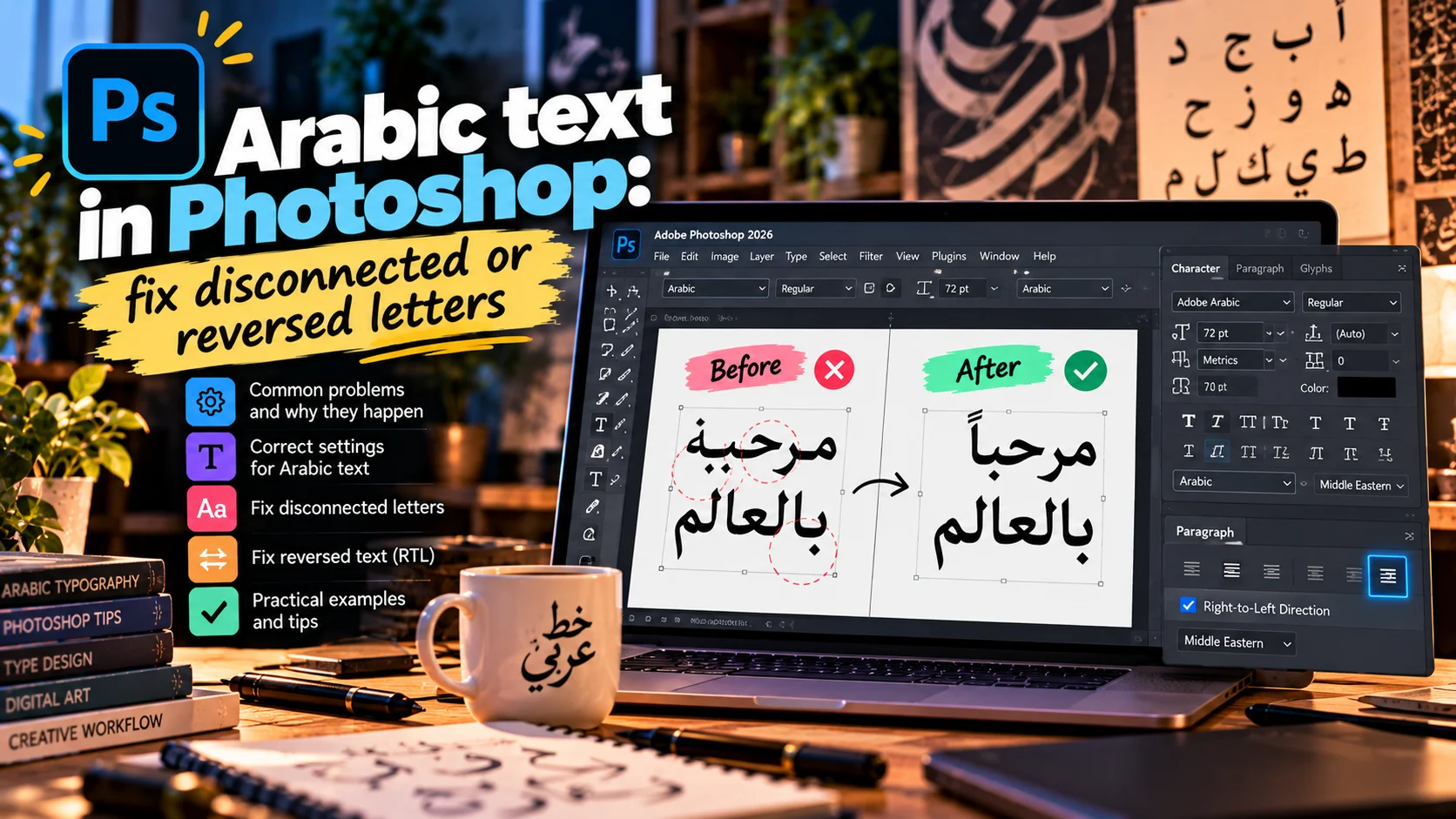
If you type Arabic in Photoshop and the letters come out separated, backwards, or both, nothing is wrong with your keyboard. The fix depends on your version. Since Photoshop 23.0, the October 2021 release also sold as Photoshop 2022, every new type layer supports Arabic with no setup. In older versions you usually need to switch the text engine in Preferences.
On a current version, a remaining problem almost always comes from an old file, a font with no Arabic in it, or text that was "fixed" somewhere before it reached you.
Below: why it happens, the fix for current Photoshop, for 2020 and 2021, and the honest answer for CS6, then the Arabic settings Adobe documents in October 2026, pasted text, fonts, Illustrator and InDesign, and a checklist. Keyboard shortcuts have their own article, Photoshop shortcuts.
Why Arabic breaks: shaping and direction
If you do not read Arabic, two facts explain the whole problem.
- Letters change shape. Most Arabic letters have up to four forms: alone, at the start, in the middle and at the end of a word. They join their neighbours, and some pairs, such as lam and alef, merge into one ligature. Choosing the right form is called shaping.
- Lines run right to left, while numbers and English words inside them still read left to right. Handling both in one line is called bidirectional (bidi) layout.
A text engine built only for Latin scripts does neither. It sets each letter in its standalone form, left to right: a word spelled backwards in separate letters.
The usual causes:
- A version older than 23.0 with the Middle Eastern engine off.
- Type layers in an old file still on the old engine.
- A font with no Arabic, or an old font format Photoshop no longer supports.
- Text run through an online tool that "fixes" Arabic for old software.
- A left-to-right paragraph. The letters still join, but the full stop lands at the wrong end.
Check your Photoshop version first
On Windows, open Help, then About Photoshop. On a Mac, open the Photoshop menu, then About Photoshop.
| Version | Arabic support | What to do |
|---|---|---|
| 23.0 and later (Photoshop 2022 onwards) | One engine, Arabic on by default | Type in a new layer, set direction and font |
| Before 23.0, including 2020 and 2021 | Present, but needs switching on | Choose World-Ready Layout in Preferences |
| CS6 and earlier | Described for Middle Eastern versions | Upgrade, or one of the workarounds below |
The fix in Photoshop 23.0 and later
In 23.0 Adobe replaced the old per-script text engines with one Unified Text Engine. Its help pages say new type layers support all scripts by default, and that the engine switch under Preferences, Type has been removed. So you will not find World-Ready Layout in a current version, and you do not need it. Adobe's Unified Text Engine overview has the details.
- Update through the Creative Cloud app if you are below 23.0.
- Make a new type layer and choose a font that supports Arabic before you type.
- Set the paragraph to Right-to-Left in the Paragraph panel, or in the Properties panel with the type layer selected. Adobe notes this is only the default when the interface language is an Arabic- or Hebrew-enabled English version, or North African French, so on a standard install you set it yourself.
- Show the Middle Eastern options if the Character and Paragraph panels lack them: choose Middle Eastern Features from the panel menu. The Properties panel shows them on its own.
- Old files can keep their type layers on the engine they were made with. Adobe says you can switch the legacy composer from the Paragraph panel menu. If the letters still will not join, copy the text into a new layer.
If a Latin font is active when you type Arabic, Photoshop may swap in another font that has the characters. That is Missing Glyph Protection, on by default in Preferences, Type. Treat it as a warning and choose an Arabic font yourself.
Paragraph and Character settings that matter for Arabic
Once the letters join, these controls do the rest. They sit in the Paragraph, Character or Properties panel, under Adobe's names.
Paragraph and character direction
Paragraph direction decides where the line starts and where punctuation lands. A full stop at the start of an Arabic sentence means the paragraph is Left-to-Right.
When a paragraph mixes scripts, such as an English brand name or a phone number inside Arabic, select those characters and set their direction from the Character panel menu. That fixes the word or number that jumps out of place.
Justification and kashida
Arabic justifies lines by stretching the joins between letters, a stroke called kashida. Photoshop's Insert Kashidas menu at the bottom of the Paragraph panel offers None, Short, Medium, Long and Stylistic. Adobe notes it only works in justified paragraphs, so with right alignment it does nothing. Use it with restraint: long kashidas on line after line tire the eye.
Justification Alternates, a related option, swaps some letters for wider or narrower forms. It needs an OpenType font with those alternates, and Adobe names Adobe Arabic as one.
Digits
In Adobe's menus, "Arabic" digits are 0 to 9. The Eastern Arabic digits used on many signs and newspapers in Egypt and the Gulf are called "Hindi", and "Farsi" is a third set. Pick one from the Digits list in the Character or Properties panel. Adobe says Hindi is the default for Arabic text in the Middle Eastern versions. For a brand, choose one set and write it into the guidelines.
Diacritics
Vowel marks matter in Quranic and educational text, and in some fonts they collide with the dots. Adjust Horizontal Diacritic Position and Adjust Vertical Diacritic Position, in the Character and Properties panels, move them. Nudge, then check at high zoom. If they still look poor, switch to a font designed for vowelled text.
Ligatures
Required forms such as lam-alef are handled by the engine. Some fonts add optional ones: Standard Ligatures for common pairs, Discretionary Ligatures for decorative forms, with buttons at the bottom of the Character panel. Adobe names Adobe Arabic, Myriad Arabic and Adobe Naskh as fonts that have them.
Photoshop 2020, 2021 and other versions before 23.0
These versions came before the unified engine: the support is there, but off by default. Adobe describes these steps for releases before 23.0:
- Go to Edit, Preferences, Type on Windows, or Photoshop, Preferences, Type on a Mac.
- Under Choose Text Engine Options, select World-Ready Layout. Some versions may label it Middle Eastern and South Asian.
- Click OK and restart Photoshop.
- Open a document, pick a Type tool, and turn on Type, Language Options, Middle Eastern Features.
- In the Paragraph panel menu, check the paragraph uses World-Ready Layout, and set it to right-to-left.
If Preferences has no text engine section at all, your version has no Middle Eastern support. Read on.
Photoshop CS6 and older: the honest answer
Adobe's CS6 support page describes Arabic and Hebrew features as part of the Middle Eastern and North African versions. If your CS6 shows no Middle Eastern options in Preferences or the Type menu, each choice has a cost:
- Upgrade. The only complete fix: live, editable Arabic with every setting above.
- Set the Arabic elsewhere and bring it in as shapes. Type it in an app that shapes Arabic correctly, convert it to outlines, and place it as a shape or Smart Object. It looks right, but every change means a trip back.
- Online "Arabic reversers". They store pre-shaped letters backwards so a Latin-only engine shows them correctly. Fine for one short line that never changes. Multi-line text comes out in the wrong order, vowel marks break, editing is close to impossible, and the text appears reversed if the file is later opened in a modern version.
Arabic pasted from Word or the web
- From Word: Arabic in Word is ordinary Unicode, so it pastes into current Photoshop with its letters joined. Do not count on the formatting, and set font and direction after pasting. If it behaves oddly, paste it through a plain text editor such as Notepad first.
- From a website or an old file: if pasted Arabic shows up reversed while your own typing is fine, it has almost certainly been through a reverser. No setting fixes it. Ask for the original text, or retype it.
- If you do not read Arabic: ask for the copy in an editable file, never a screenshot, and have a native reader check the final proof.
- Long text does not belong in Photoshop. Keep paragraphs in Illustrator or InDesign, as my guide to Photoshop tools explains.
Fonts that actually support Arabic
Check three things before you type:
- It is an OpenType font with Arabic characters. Adobe says the Arabic features in 23.0 and later work with any Arabic or Hebrew OpenType font.
- Your version still supports it. With the unified engine, Photoshop dropped Type 1 fonts and the old Arabic AXT fonts. An old file built on one will need a modern OpenType replacement.
- It passes a quick test: the lam-alef لا, words heavy with dots such as تثبيت, a vowelled line if you need one, and an English word and a number inside an Arabic sentence.
For free fonts you can use commercially, see my checked list of free Arabic fonts. For the face behind a mark, see Arabic fonts for logos.
When the text is a logo, draw it
A logo is different from live text. For the Ashafaq identity, a hand car wash in Saudi Arabia, I drew the Arabic letters bold and tall, with soap bubbles over them, in navy and sky blue. On the red Fanash snack pack, the Arabic name is lettered by hand. Drawn letters are vector shapes, not a type layer, so they look the same in any app and at any printer, with no text engine or installed font involved.
The working rule: what changes often, like prices and body copy, stays live text in a licensed font. What must never change, like the logo, is drawn or outlined before handover.
The same fix in Illustrator, and a note on InDesign
In Illustrator you choose the composer yourself, and some Arabic controls depend on the version you installed. As Adobe documents it in October 2026:
- Open Preferences, Type (under Edit on Windows, under Illustrator on a Mac) and turn on Show Indic Options. It cannot be on together with the East Asian options.
- Select the text and choose the Middle Eastern & South Asian Single-line Composer or Every-line Composer from the Paragraph panel menu. This composer is what joins the letters. Single-line works line by line; Every-line balances breaks across the paragraph.
- For paragraph direction, digit types, automatic kashidas and diacritics, Adobe points to the Middle Eastern version with an English interface, or the North African French version. In the Creative Cloud app, go to Preferences, then Apps, pick the English option with Arabic support as the default install language, then uninstall and reinstall Illustrator.
InDesign follows the same pattern. Adobe recommends the Adobe World-Ready Paragraph Composer or World-Ready Single-line Composer for Arabic, with full right-to-left support in the Arabic version from the Creative Cloud app, and says InDesign keeps direction and alignment when you paste Arabic from Word. For a brochure or company profile, that is the right home.
Checklist: symptom, cause, fix
| Symptom | Cause | Fix |
|---|---|---|
| Separate, reversed letters everywhere | Version before 23.0, engine off | World-Ready Layout, or update |
| Separate letters in one old file | Layers on the legacy engine | Switch composer, or a new layer |
| Pasted text reversed, typing fine | Text went through a reverser | Original text, or retype |
| Full stop at the start of the line | Paragraph Left-to-Right | Right-to-Left |
| English word or number out of place | Mixed direction | Character direction |
| Font changes by itself | Font has no Arabic | An Arabic OpenType font |
| Old font no longer works | AXT and Type 1 unsupported since 23.0 | A modern OpenType font |
| Digits in the wrong style | Digits setting | Arabic, Hindi or Farsi |
| No kashidas | Paragraph not justified | Justify, then Insert Kashidas |
| Colliding vowel marks | Font or mark position | Diacritic Position, or another font |
| Separate letters in Illustrator | Latin composer | Show Indic Options, Middle Eastern composer |
| No direction controls in Illustrator | Installed version | The Middle Eastern version |
| CS6 with no Arabic options | Not a Middle Eastern version | Upgrade, or text as shapes |
Conclusion
Broken Arabic always comes back to a text engine that is not applying Arabic rules. In current Photoshop the engine is ready, so look at the file, the font or the pasted text. Before 23.0, switch on World-Ready Layout. In a standard CS6, upgrade. Then set direction, digits, kashidas and diacritics.
If you need a bilingual identity or packaging with drawn Arabic lettering and type that holds up everywhere, tell me about your project.
Questions people ask
Why are my Arabic letters disconnected in Photoshop?
The text engine drawing the line does not apply Arabic rules, so it neither joins the letters nor orders them right to left. It happens in versions before 23.0 when World-Ready Layout is off, in type layers from old files, with fonts that lack Arabic, and with text that went through an online "Arabic fixer".
How do I enable Arabic in Photoshop 2021 or 2020?
Go to Edit, Preferences, Type (Photoshop, Preferences, Type on a Mac), choose World-Ready Layout under Choose Text Engine Options, and restart. Then, with a Type tool selected, turn on Type, Language Options, Middle Eastern Features, and set the paragraph to right-to-left.
Does Photoshop CS6 support Arabic?
Adobe's CS6 documentation describes Arabic and Hebrew support in the Middle Eastern and North African versions. If your copy shows no Middle Eastern options, the full fix is a current version. The workaround is to set the Arabic in an app that supports it and bring it in as outlines.
How do I type Arabic in Illustrator?
Turn on Show Indic Options in Preferences, Type, then choose the Middle Eastern & South Asian Single-line or Every-line Composer from the Paragraph panel menu. For the full set of controls, such as paragraph direction, digits and kashidas, Adobe points to the Middle Eastern version, installed from the Creative Cloud app.
Why do numbers in my Arabic text look different?
The Digits setting decides it. Adobe calls the 0 to 9 digits Arabic, and the Eastern Arabic digits common in Egypt and the Gulf Hindi, with Farsi as a third option. Select the numbers and pick the one you want in the Character or Properties panel.

Keep reading
Affinity vs Photoshop and Illustrator: an honest 2026 comparison
Canva made Affinity free, with pixels, vectors and layout in one app. Affinity vs Photoshop and Illustrator on files, Arabic text, AI and who should switch.
Photoshop keyboard shortcuts for Windows and Mac, sorted by task
The Photoshop keyboard shortcuts designers use every day, grouped by task in Windows and Mac tables, with fixes for shortcuts that stop working.
Free Photoshop alternatives in 2026 that hold up on real work
The free Photoshop alternatives worth using in October 2026: Affinity, Photopea, GIMP, Krita, Inkscape and more, judged on PSD, print, Arabic text and AI.