Photoshop keyboard shortcuts for Windows and Mac, sorted by task
The Photoshop keyboard shortcuts designers use every day, grouped by task in Windows and Mac tables, with fixes for shortcuts that stop working.
Published 11 min read
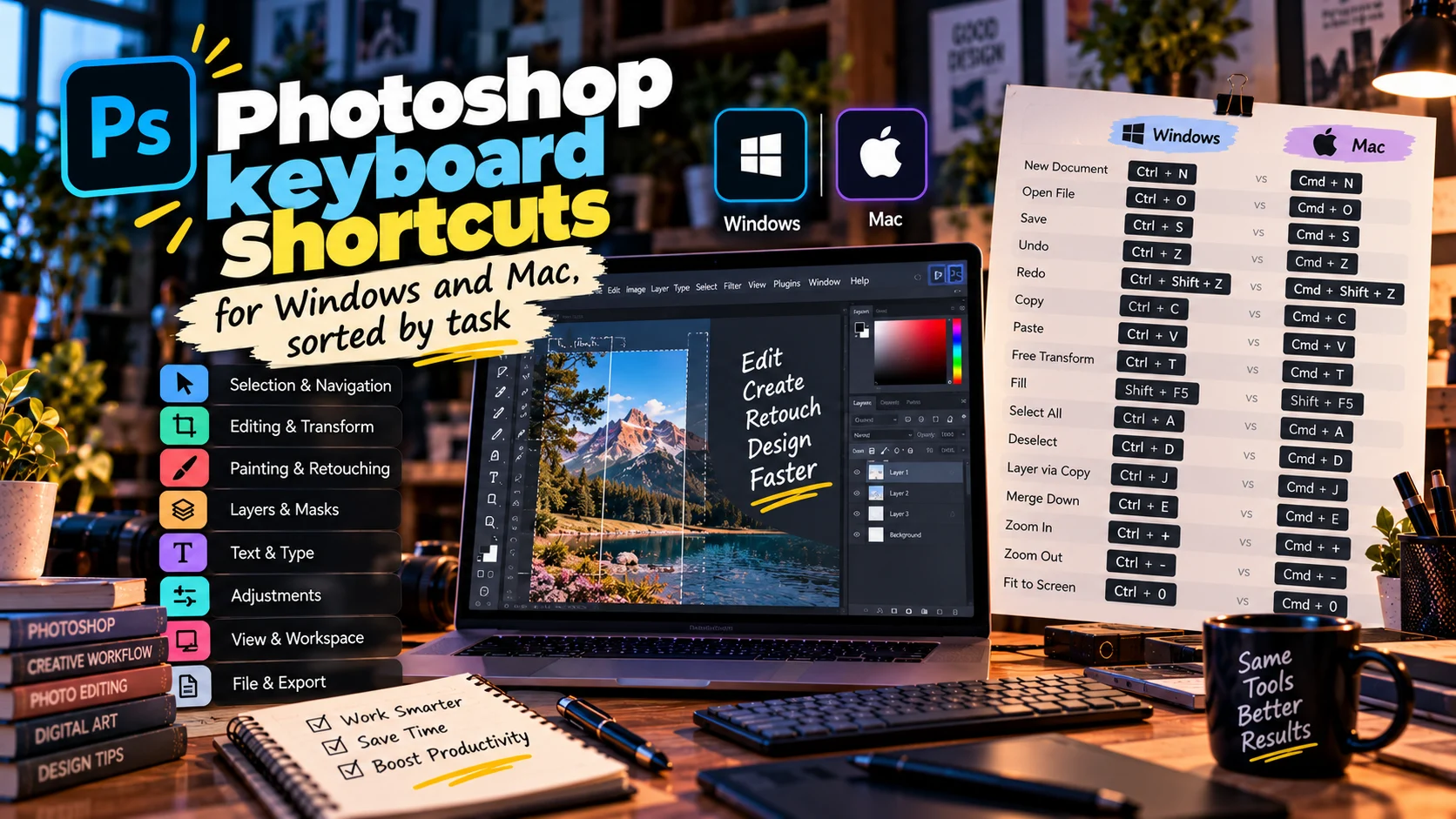
Photoshop keyboard shortcuts replace trips to the menus with a few keys: Ctrl + S saves, Ctrl + J copies a layer, Ctrl + T starts Free Transform. On a Mac, Cmd takes the place of Ctrl and Option takes the place of Alt. The letters stay the same.
This guide groups the commands designers use every day by task, each in a table with a Windows and a Mac column: files, layers, selections and masks, transform, brushes, view, type, and undo. After the tables come the usual reasons shortcuts stop working, how to print Photoshop's own full list as a PDF, and the first 15 I would learn.
Tool letters, such as V for Move, are covered in my guide to Photoshop tools and their uses, so this article sticks to commands and modifier keys. Every shortcut below is from the Photoshop Defaults set in Photoshop 2026, as of October 2026.
Windows and Mac: four rules first
- Ctrl on Windows is Cmd on a Mac, Alt is Option, and Enter is Return.
- Function keys usually need Fn on a Mac keyboard.
- A tool shortcut is a single letter from A to Z, which matters if you type in a second language.
- A menu shortcut on Windows must include Ctrl or a function key, so most commands below start with Ctrl.
Files and documents
| Command | Windows | Mac |
|---|---|---|
| New / Open | Ctrl + N / Ctrl + O | Cmd + N / Cmd + O |
| Save | Ctrl + S | Cmd + S |
| Save As | Shift + Ctrl + S | Shift + Cmd + S |
| Save a Copy (another format, same open file) | Alt + Ctrl + S | Option + Cmd + S |
| Export As | Alt + Shift + Ctrl + W | Option + Shift + Cmd + W |
| Image Size | Alt + Ctrl + I | Option + Cmd + I |
| Canvas Size | Alt + Ctrl + C | Option + Cmd + C |
| Close | Ctrl + W | Cmd + W |
| Ctrl + P | Cmd + P |
Image Size changes the number of pixels and resamples the picture. Canvas Size adds or trims space around it without scaling anything. For which format to save in, see my guide to design file formats.
Layers
| Command | Windows | Mac |
|---|---|---|
| New Layer | Shift + Ctrl + N | Shift + Cmd + N |
| Layer Via Copy (copy the layer or selection) | Ctrl + J | Cmd + J |
| Group / Ungroup | Ctrl + G / Shift + Ctrl + G | Cmd + G / Shift + Cmd + G |
| Create Clipping Mask | Alt + Ctrl + G | Option + Cmd + G |
| Merge selected layers, or merge down | Ctrl + E | Cmd + E |
| Merge Visible | Shift + Ctrl + E | Shift + Cmd + E |
| Stamp Visible (merged copy on a new layer) | Shift + Alt + Ctrl + E | Shift + Option + Cmd + E |
| Move layer up / down | Ctrl + ] / Ctrl + [ | Cmd + ] / Cmd + [ |
| Show only this layer | Alt-click the eye icon | Option-click the eye icon |
- Ctrl + J before you edit. Work on the copy and keep the original underneath.
- Stamp Visible rather than Merge Visible when you need one flat layer for a filter. It puts the merged copy on top and leaves your layers alone.
- Clipping masks confine a layer to the shape below it: a photo inside type, or an adjustment that touches only the product shot.
Selections and masks
| Command | Windows | Mac |
|---|---|---|
| Select All / Deselect | Ctrl + A / Ctrl + D | Cmd + A / Cmd + D |
| Reselect | Shift + Ctrl + D | Shift + Cmd + D |
| Inverse | Shift + Ctrl + I | Shift + Cmd + I |
| Feather | Shift + F6 | Shift + F6 |
| Select and Mask | Alt + Ctrl + R | Option + Cmd + R |
| Quick Mask | Q | Q |
| Paste Into (pastes inside the selection, with a mask) | Alt + Shift + Ctrl + V | Option + Shift + Cmd + V |
| Paste in Place | Shift + Ctrl + V | Shift + Cmd + V |
With the marquee tools, hold Shift while you drag for a square or a circle, and Alt (Option) to draw from the centre. Add, subtract and intersect sit in the options bar.
Inside Select and Mask, letters change meaning: F cycles the view modes, X turns them off, P shows the original, and R picks the Refine Edge Brush for hair and steam. Generative Fill also starts from a selection, and my Generative Fill guide covers where it helps.
Transform
| Command | Windows | Mac |
|---|---|---|
| Free Transform | Ctrl + T | Cmd + T |
| Transform Again | Shift + Ctrl + T | Shift + Cmd + T |
| Transform a new copy of the layer | Alt + Ctrl + T | Option + Cmd + T |
| Transform again, on a new copy | Alt + Shift + Ctrl + T | Option + Shift + Cmd + T |
| Content-Aware Scale | Alt + Shift + Ctrl + C | Option + Shift + Cmd + C |
| Apply / cancel | Enter / Esc | Return / Esc |
Right-click inside the transform box for Skew, Distort, Perspective and Warp, the one that wraps artwork around a cup or pouch in a mockup.
For a radial pattern, transform a copy with Alt + Ctrl + T, move the reference point, rotate a little and press Enter. Each press of Alt + Shift + Ctrl + T then adds another copy with the same turn.
Brushes and painting
| Command | Windows | Mac |
|---|---|---|
| Smaller / larger brush | [ / ] | [ / ] |
| Softer / harder brush | Shift + [ / Shift + ] | Shift + [ / Shift + ] |
| Default black and white | D | D |
| Swap foreground and background | X | X |
| Lock transparent pixels | / | / |
| Fill dialog | Shift + F5 | Shift + F5 |
| Brush Settings panel | F5 | F5 |
| Set the Clone Stamp source | Alt-click | Option-click |
The pair you will press most is D then X on a layer mask: paint black to hide and white to reveal without leaving the brush. Locking transparent pixels with / lets you recolour a shape without painting outside it.
View and zoom
| Command | Windows | Mac |
|---|---|---|
| Zoom in / out | Ctrl + + / Ctrl + - | Cmd + + / Cmd + - |
| Fit on Screen | Ctrl + 0 | Cmd + 0 |
| Actual pixels | Ctrl + 1 | Cmd + 1 |
| Hand tool, temporarily | Hold Space | Hold Space |
| Cycle screen modes | F | F |
| Rulers | Ctrl + R | Cmd + R |
| Proof Colors | Ctrl + Y | Cmd + Y |
| Gamut Warning | Shift + Ctrl + Y | Shift + Cmd + Y |
| Layers panel | F7 | F7 |
Ctrl + 1 matters more than it looks: judge every cut-out at actual pixels. Ctrl + Y previews the print, using the profile chosen in View > Proof Setup.
Type
| Command | Windows | Mac |
|---|---|---|
| Select all text while editing | Ctrl + A | Cmd + A |
| Commit text and leave editing | Ctrl + Enter | Cmd + Return |
While the cursor sits in a text box, every key types into it, Space included, so tool letters only come back after you commit. Adobe's shortcut page lists the extra keys for formatting selected text.
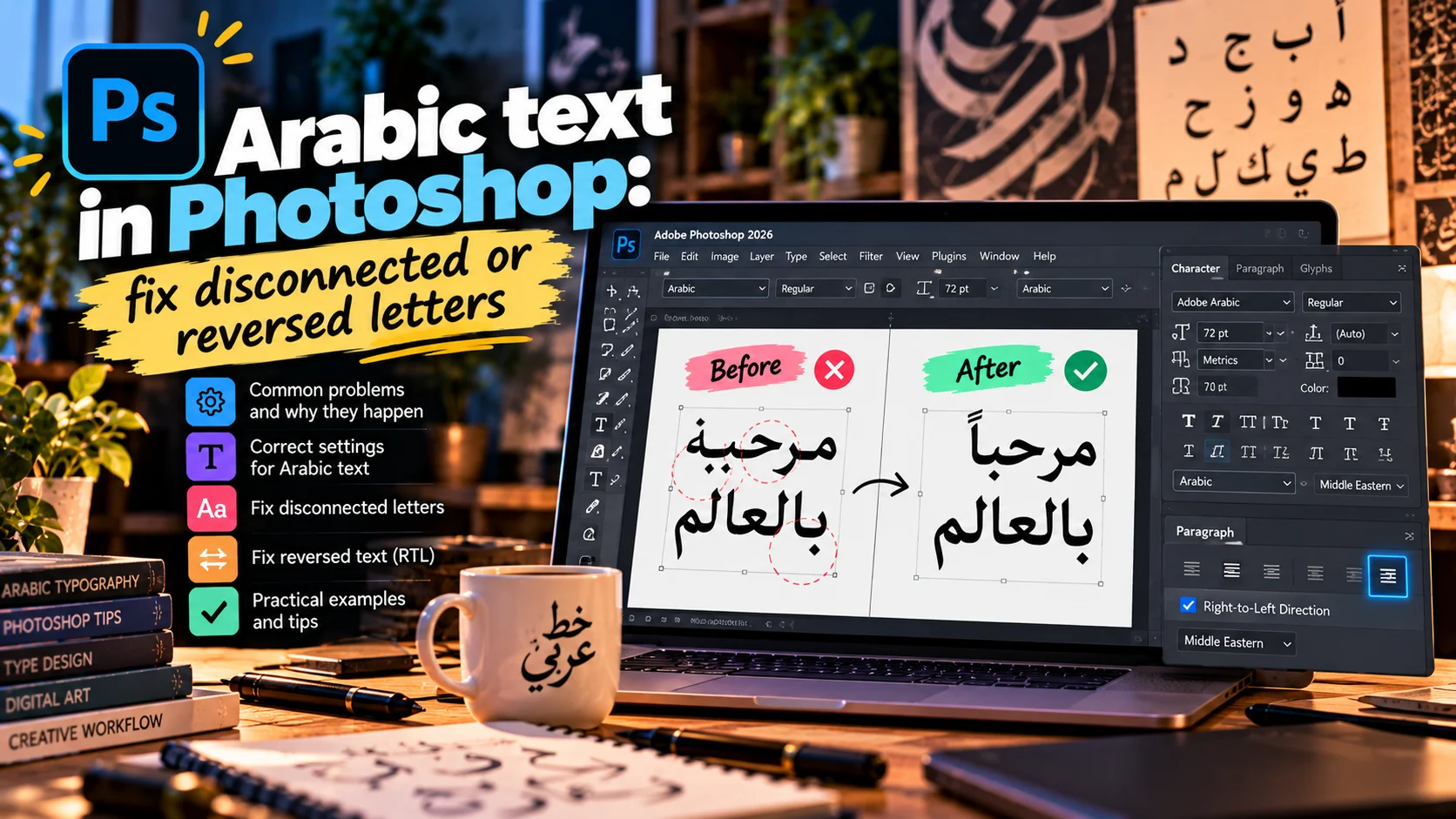
If you set Arabic, letters can break or reverse until the right text engine is on. My guide to Arabic text in Photoshop covers World-Ready Layout and paragraph direction.
Undo and history
| Command | Windows | Mac |
|---|---|---|
| Undo | Ctrl + Z | Cmd + Z |
| Redo | Shift + Ctrl + Z | Shift + Cmd + Z |
| Toggle Last State | Alt + Ctrl + Z | Option + Cmd + Z |
| Fade the last filter or adjustment | Shift + Ctrl + F | Shift + Cmd + F |
| Revert to the last save | F12 | F12 |
Each Ctrl + Z steps one state further back. If yours undoes once and then redoes, like old versions did, look for Use Legacy Undo Shortcuts in Edit > Keyboard Shortcuts; the change applies after a restart.
Levels (Ctrl + L), Curves (Ctrl + M) and Hue/Saturation (Ctrl + U) change pixels directly. As adjustment layers from the Layers panel, they stay editable.
From my work: where these commands earn their keep
On Family Life, an Egyptian food producer, I designed the packaging for Doreno chips, Bread Roll, tortilla bags for export, and gollash and samosa boxes, working in Illustrator and Photoshop. Every flavour owns a colour and the food photography is shown large, so the range reads from across the aisle.
A range like that repeats the same image steps across many packs, and a handful of commands carry that work:
- Ctrl + J before any retouching, so the original photo stays safe.
- Alt + Ctrl + G to clip a colour adjustment to the product shot alone.
- Ctrl + 1 to check the edges at actual pixels.
- Ctrl + Y to see which colours may shift in print.
Shortcuts not working? Four causes and their fixes
1. The keyboard is set to another language
Tool shortcuts are single Latin letters. If you also type in Arabic, Hebrew or Russian, for example, the same key produces a different character while that layout is active, and Photoshop may ignore it. Switch back to English:
- Windows: hold the Windows key and press Space, or pick the language from its icon on the taskbar.
- Mac: Control + Space, or the input menu in the menu bar.
2. A clash with the system or another app
Photoshop keeps a list of shortcuts Windows reserves, such as Alt + F4 and Ctrl + Tab, and warns you if you assign one. On a Mac, Cmd + Space opens Spotlight and Control + Space switches input sources. Background apps with global shortcuts, such as screen recorders or chat apps, can catch keys before Photoshop does. Quit them one at a time to find the culprit.
3. Something else is holding the keys
- Editing text: keys type into the text box. Commit it first.
- A number field is active in a panel or the options bar: what you type goes into the field.
- A transform is open: most commands wait for Enter or Esc.
- Special workspaces such as Select and Mask and Content-Aware Fill have their own letters.
4. Reset or customise in Edit > Keyboard Shortcuts
Open Edit > Keyboard Shortcuts, or press Alt + Shift + Ctrl + K (Option + Shift + Cmd + K on a Mac):
- In the Set menu, choose Photoshop Defaults to bring every shortcut back. Save any custom set first.
- In Shortcuts For, pick Application Menus, Panel Menus or Tools.
- To change a shortcut, click in the Shortcut column next to a command and press the new keys. If they are taken, Photoshop shows the conflict and offers Accept and Go to Conflict.
- Use Default restores one command, and Delete Shortcut removes it.
Safer still, copy a set with the New Set button and edit the copy. As a last resort, hold Alt + Ctrl + Shift (Option + Cmd + Shift on a Mac) as Photoshop starts and agree to delete the settings file. That resets every preference.
A full list as a PDF, straight from Photoshop
Photoshop exports its own cheat sheet:
- Open Edit > Keyboard Shortcuts.
- Click Summarize. Photoshop saves a web page (HTML) listing every shortcut in the current set.
- Open it in a browser, print it, and choose to save as PDF in the print dialog.
That list matches your version and any shortcuts you have changed. For the keys that work with the mouse, such as Alt-clicking the eye icon, see Adobe's Photoshop shortcuts page.
The first 15 I would learn
- Space for the Hand tool.
- Ctrl + Z and Shift + Ctrl + Z to undo and redo.
- Ctrl + S to save.
- Ctrl + J to copy a layer.
- Ctrl + T for Free Transform.
- Ctrl + D to deselect.
- Shift + Ctrl + I to invert a selection.
- Alt + Ctrl + R for Select and Mask.
- [ and ] for brush size.
- D and X for black and white on a mask.
- Ctrl + 0 and Ctrl + 1 to fit the screen and see actual pixels.
- Ctrl + G to group layers.
- Alt + Ctrl + G for a clipping mask.
- Shift + Alt + Ctrl + E for a merged copy that keeps your layers.
- Ctrl + Enter to commit text.
Do not learn them in one sitting. Pick three commands you open from a menu every day, use their keys until they stick, then add three more.
Conclusion
Learn shortcuts by the job you repeat, remember that Ctrl means Cmd on a Mac, and check the input language before you blame Photoshop. If you are weighing a different app, my round-up of free Photoshop alternatives is a good start, but check each app's own shortcut list rather than assuming it copies Photoshop.
If you need packaging or a brand whose images are prepared with care all the way to the printer, start a project with me.
Questions people ask
Why are my Photoshop keyboard shortcuts not working?
Check the keyboard input language first. Tool shortcuts are single Latin letters, so they may not respond while your keyboard is set to another layout, such as Arabic. Then look for another app or a system shortcut using the same keys. If it still fails, choose Photoshop Defaults in Edit > Keyboard Shortcuts, or reset Photoshop's preferences.
How do I get a printable PDF of Photoshop shortcuts?
Open Edit > Keyboard Shortcuts and click Summarize. Photoshop saves a web page listing every shortcut in the current set. Open it in a browser and print it, or save it as a PDF from the print dialog.
Are Photoshop shortcuts the same on Mac and Windows?
Almost. Ctrl on Windows becomes Cmd on a Mac, Alt becomes Option and Enter becomes Return, while the letters stay the same. Function keys such as F7 usually need the Fn key on a Mac keyboard.
How do I reset Photoshop keyboard shortcuts to default?
In Edit > Keyboard Shortcuts, choose Photoshop Defaults from the Set menu. To reset a single command, select it and click Use Default. If you have unsaved changes, Photoshop asks whether to save them before it switches sets.
Which Photoshop shortcuts should I learn first?
Space for the Hand tool, Ctrl + Z to undo, Ctrl + S to save, Ctrl + J to copy a layer, Ctrl + T for Free Transform, Ctrl + D to deselect, and [ and ] for brush size. Together they cover most of a working day.

Keep reading

Photoshop tools and their uses, sorted by the job they do
Every main Photoshop tool grouped by job with its shortcut, plus the short list I use daily on brand and packaging work, and where generative tools fit.
Arabic text in Photoshop: fix disconnected or reversed letters
Arabic letters disconnected or reversed in Photoshop? Why it happens, the fix in current and older versions, and the settings for direction, kashida and digits.

Affinity vs Photoshop and Illustrator: an honest 2026 comparison
Canva made Affinity free, with pixels, vectors and layout in one app. Affinity vs Photoshop and Illustrator on files, Arabic text, AI and who should switch.